
14 September 2026
One terminal for the services behind your app
How we replaced duplicated development dashboards with a shared TypeScript tool for service controls, live status, and process cleanup.
We had several projects with almost the same development dashboard. Each one started a few processes, put their status above a shared log panel, and offered shortcuts for restarting services. Each one also carried its own process cleanup, health checks, keyboard handling, and terminal rendering.
The differences were useful. A mobile project needed iOS and Android launch actions. A property-management project needed to switch between WordPress sites. A web application needed its portal, API, and background jobs in one place. Copying the whole dashboard to keep those differences was becoming expensive.
dev-pad is the shared TypeScript package we extracted from that work. It gives each project a small configuration file and keeps the terminal interface and process management in one place.
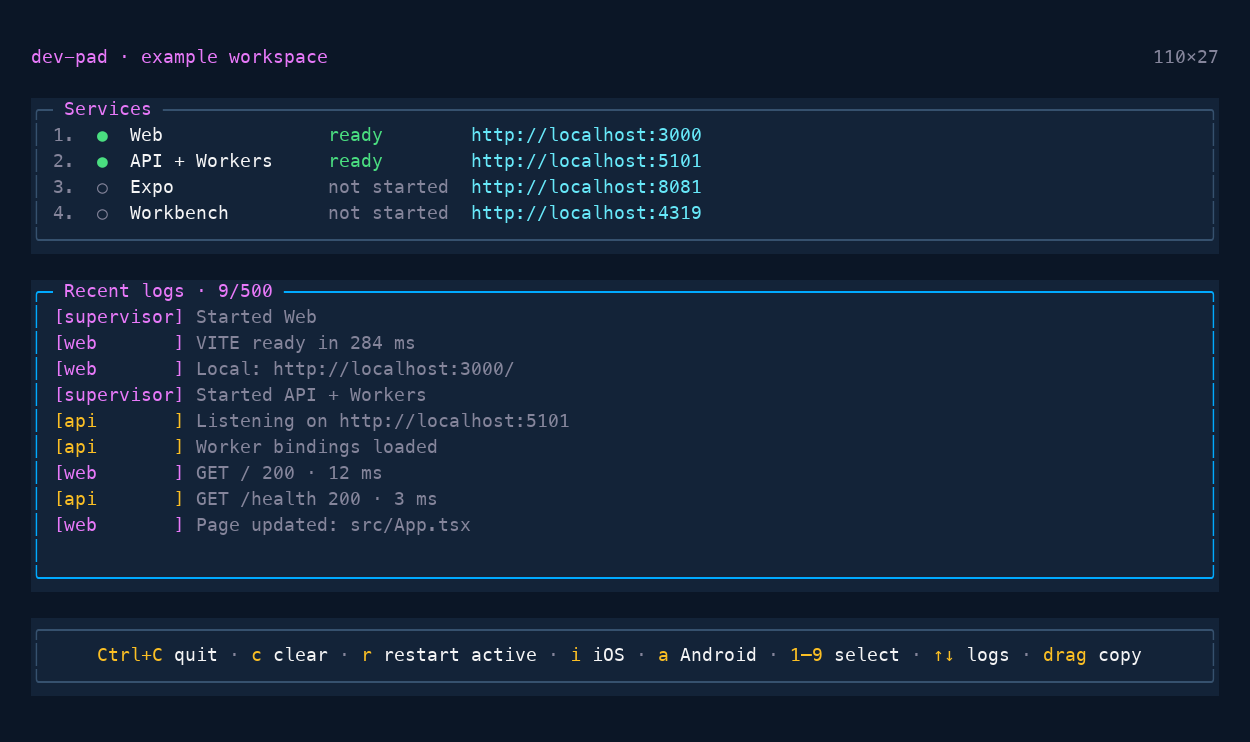
Each row is a service
We organised the dashboard around services, each with its own command or lifecycle hooks, status, and actions. A website, an API, an Expo development server, and a group of local database containers can all fit that shape.
We considered provider classes, but the project-specific behaviour did not need an inheritance hierarchy. Plain objects and functions were enough. A service can declare its command and port, compute its URL, contribute status details, and define actions that receive a context for starting, stopping, or writing to processes.
That keeps the unusual parts close to the project. In the WordPress setup, switching sites updates the active profile and restarts the portal with the new site URL. The shared dashboard does not need to know what a WordPress site profile is. It just runs the action and displays the updated status.
Service details sit beneath their parent row. An admin URL and the active CMS profile belong beneath Site; database connection information belongs beneath Data stores. That makes it easier to see which details belong to which service while they are starting.
Select first, then act
Number keys select a service. They do not immediately restart it.
Once selected, the toolbar shows that service's actions: start or restart, stop, open its URL, and any custom controls. Escape clears the selection, and another number selects another service. q stops the selected service; Ctrl+C shuts down the dashboard and its managed services.
Some actions are useful before selecting anything. The iOS and Android launch shortcuts can be promoted to the top level with global: true. They also appear when Expo is selected, but disappear when an unrelated service is selected.
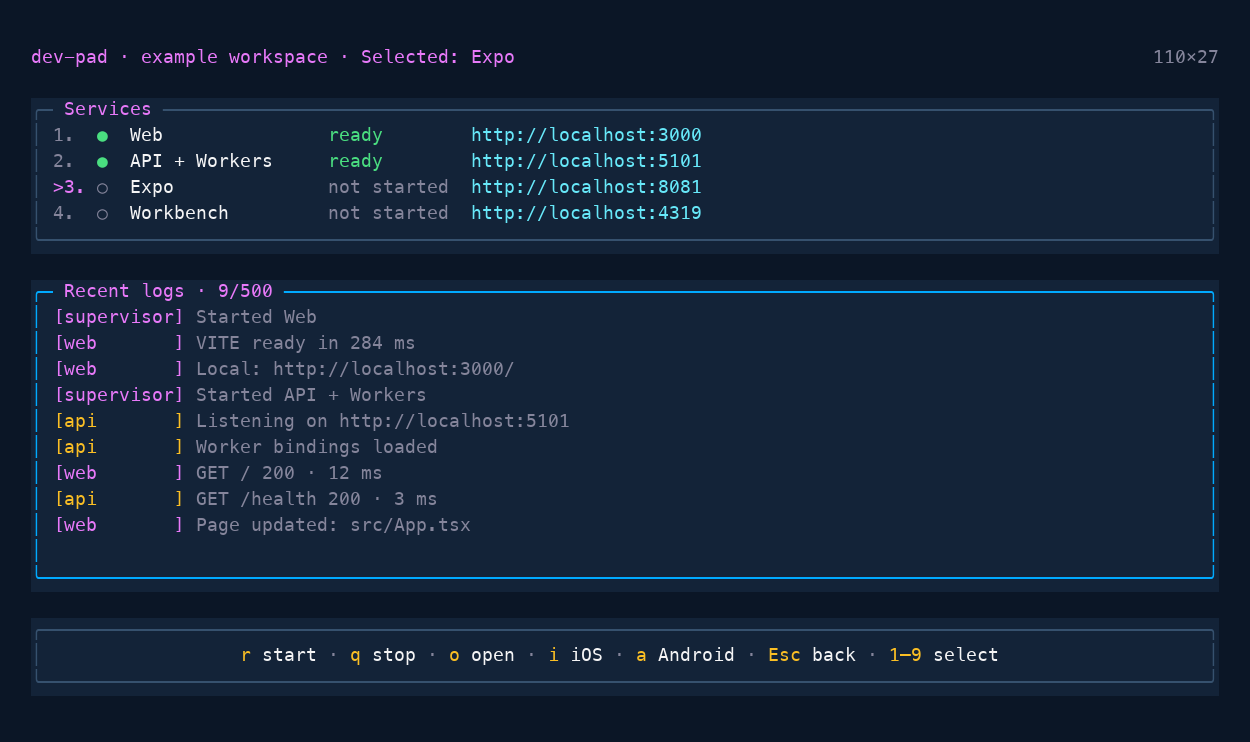
Optional services also have a distinct initial state. A mobile build or calibration workbench that has never run says not started. After it has run and exited, it says stopped. Otherwise, a fresh dashboard makes an intentionally idle service look as though something already shut it down.
The difficult part is stopping
A development command often starts other processes. Stopping the immediate child is insufficient when its descendants still own a port or keep writing logs. The parent can even exit before the dashboard asks it to stop.
On POSIX, dev-pad terminates managed process groups and escalates to SIGKILL if they do not finish within the grace period. It retains enough lifecycle state to clean up descendants after a parent exits. Custom stop hooks also need to run after a command has finished: an exited JavaScript process does not imply that its Docker containers or other resources are gone.
There are smaller traps in the output, too. A spinner repeatedly rewrites the same terminal line with carriage returns. Treating each update as a new log entry produces a wall of duplicate messages. The shared log handling buffers stdout and stderr separately and handles those updates before appending completed lines.
Now, when we fix cleanup or log handling, every project can get the fix by updating the package.
Try it in a project
Install the package:
Create dev-pad.config.ts:
Replace the commands and ports with your project's own, then run:
The explicit config path also works with the initial npm release. Add --check to validate the configuration without launching services.
The dashboard runs under Node, Bun, or Deno, independently of the executables your services use. Bun supplies the richer terminal renderer and native terminal integration; Node and Deno use the portable renderer. The repository checks process behaviour and terminal interaction across all three runtimes.
The standalone example includes a website, an API, an optional worker, and a site-switching action. It is a useful starting point for seeing how custom controls fit into the same interface.
Our projects now keep their service definitions and custom actions in a config file, with the dashboard maintained in one package. dev-pad is available on npm, with the source and configuration reference on GitHub.